The Results Screen
After a search, your results screen will look something like this:
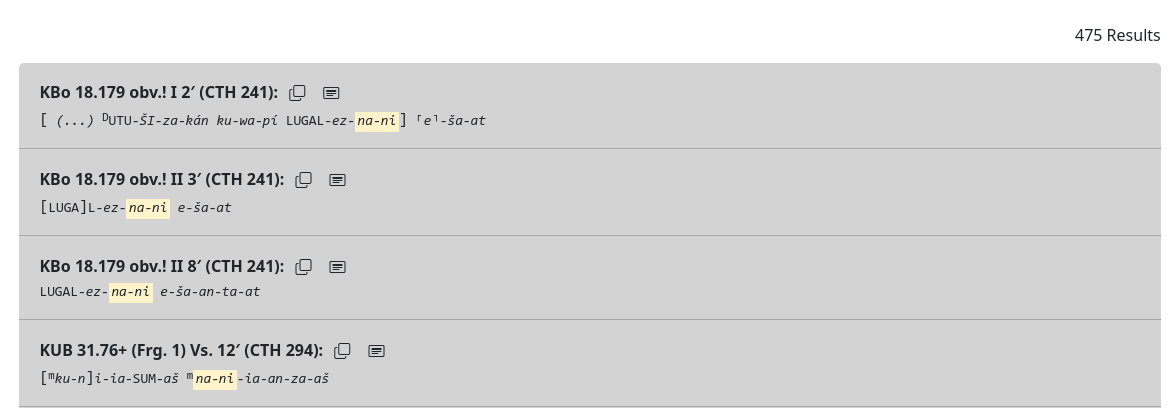
On the right side you will find a printout of the number of results your search has returned. Each result displays a bolded line like:
KBo 18.179 obv.! I 2′ (CTH 241)
containing the publication location and number, the side and column where available, and the line number. Following these is the CTH number in parentheses.
Next to the identifying information for each line, there is a button to copy the line (including formatting) to your clipboard for easy copy/paste functionality, and a second button which will copy a citation in Bibtex format to your clipboard for easy citations.
Example
@misc{KBo1.10+(Frg.1)Vs.46(CTH172), title = {KBo 1.10+ (Frg. 1) Vs. 46 (CTH 172) }, url = {http://localhost/hittite_portal/}, date = {2025-8-15} }
The text line itself is displayed with all scholarly notation, and the searched component is highlighted for easy viewing. Notes are displayed below the line where present, and any gaps or spaces marked in the text are represented with ⋮SPACE⋮ or ⋮GAP: (ca. 12 signs) ⋮ with red highlighting to make them easy to spot. Parahraph separators are likewise marked with ⋮PARSEP⋮.
Tip
Notes will appear throughout the corpus in various languages, mainly German, although some also in English or Italian. Clicking the small translation icon to the right of any note will automatically translate it to English.
Show tagging
Selecting the option to show tagging will display a separate line below the main text with morphological tagging information. This tagging information displayed below the line is based on the first available tag from the possible tags that may be included, and excludes any clitic tags.
To view more detailed tagging information, one can hover over a tag, which will display all possible tags for the word as determined by the autotagger, as well as marking any attached clitics. In some cases, the list of possible tags is extremely long and would run off the page. In these instances, the hover box is scrollable. Where only one tag is shown, this means the tag has been validated by the HethPort team, or was the only available option.
Tip
Glosses in the original corpus are all in German, which is then automatically translated to English with the use of the Kagi Translate API. When hovering, you may see this translation in action as it operates on-demand when hover actions are triggered.
Show cuneiform
When this option is turned on, another line will display below the main text showing the Unicode-encoded cuneiform transcription of what appears on the tablets. Because this is encoded in the corpus on a per-line rather than per-word basis, this information cannot be aligned word-by-word, in contrast to the tagging information.
Show clause divisions
The third toggle available on the results screen changes the visibility of clause division markers. When exposed, these will appear as a bolded, blue § with a superscripted number designating their position in the text. For example, the third clause in a text will be rendered §3. This is designed to be toggleable as some researchers will find it useful, while for others it can be visually distracting if not immediately relevant. These divisions are not searchable at this time, although they will appear in Excel exports should users wish to conduct further analyses on the basis of these divisions.
Warning
The accuracy of these divisions cannot be guaranteed. Although in many cases such divisions are essentially assured based on the presence of a clause-initial particle such as nu, in other cases it is less clear. Furthermore, not all texts contain these markings and they should be treated as only a general helpful guide where present.
Export to Excel
Clicking this button will export all results to an Excel file for further analysis. This file preserves all scholarly formatting and highlighted portions of results are encoded as underlined (due to Excel limitations). Each line is rendered:
| Publication information | Line information | CTH # | Word 1 | Word 2 | Word n... |
|---|---|---|---|---|---|
| KBo 18.179 | obv.! II 3′ | 241 | [LUGA]L-ez-na-ni | e-ša-at |
Note
Tagging and cuneiform are not currently included in the Excel export.
Search Metadata
Search metadata is included in the Excel export, viewable via the file properties. Both the actual search text and any options used for the search are recorded so that users can reproduce search results or troubleshoot searches later.